At My Buckhannon, we spend a lot of time thinking about how to make your experience as easy and intuitive as possible — especially when it comes to staying logged in across all your devices and apps. That’s why we built a simple, password-free login system designed to get you to your news with as little friction as possible.
Whether you’re reading on your phone, tablet or computer, here’s everything you need to know about logging in and getting the most out of your subscription.
How our login system works
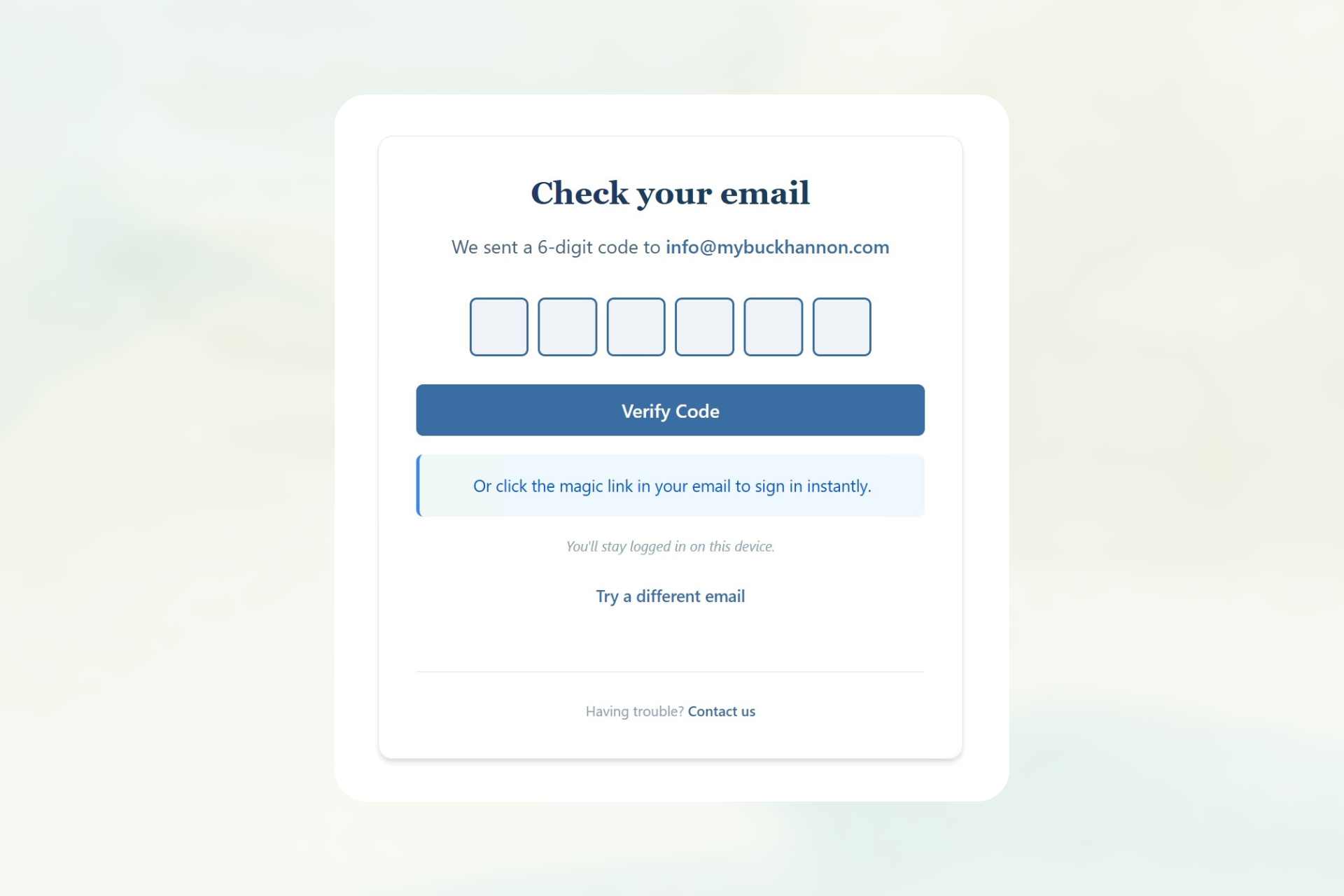
We use a code-based ‘magic link’ login system instead of passwords. Here’s how it works:
- Go to mybuckhannon.com/mylogin or click any premium story
- Enter your email address
- Check your email for a code (or click “text me the code” if you’ve added your phone number)
- Enter the code, and you’re in
The email we send also includes a direct link that logs you in automatically — no code required, just one tap!
Add your phone number for faster access
Text messages are often quicker and more reliable than email. Once you’re logged in, visit your My Account page and click “Add phone number.” We’ll text you a code to verify it, and from then on, you can choose to receive your login codes via text.
Tips for mobile users
If you’re reading on your phone, a few things can help you stay logged in:
Use your main browser. When you tap a link in Facebook, Instagram or other apps, they open in a built-in browser that doesn’t save your login. Instead, copy the link and open it in Safari (iPhone) or Chrome (Android), or long-press the link and choose “Open in browser.”
Avoid private or incognito mode. These modes don’t save cookies, so you’ll have to log in every time.
Add My Buckhannon to your home screen. This gives you one-tap access that opens in your regular browser, keeping you logged in.
How to add My Buckhannon to your home screen
On iPhone or iPad
- Open mybuckhannon.com in Safari
- Tap the Share button (the square with an arrow pointing up)
- Scroll down and tap “Add to Home Screen”
- Tap “Add” in the top right corner
On Android
- Open mybuckhannon.com in Chrome
- Tap the three-dot menu in the top right
- Tap “Add to Home screen”
- Tap “Add”
Bookmark Today’s Edition
Our Today’s Edition page (found near the top of the main menu) shows all of the day’s stories in one place. It’s updated daily and is another great page to add to your home screen for quick access.
Questions?
If you’re having trouble accessing your account, reach out through our contact page. We’re happy to help.